
APPLY  VISIT  GIVE

mySCC Account Foundation

SCC Logo
  • About
        • About SCC
          • Mission
          • History
          • Tuition and Fees
        • Accreditation
        • Administration
        • Assessment
        • Board of Trustees
        • Campuses
        • Campus Security
        • Facilities
        • Foundation
        • Institutional Effectiveness
          • Data Dashboard
          • Strategic Planning
          • Monitoring Reports
        • Maps
        • Office of the President
        • Organizational Charts
        • Policies
        • Right to Know
        • Shared Governance
        • State Authorization
        • Audit Reports
        • Bids
        • CARES Act Reports
        • College Budget
        • FOIA
        • Title IX
  • Academics
        • Programs of Study
        • Academic Calendar
        • Advisement & Registration
        • College Catalog
        • Course Offerings
        • Dual Credit
        • Faculty
        • Financial Aid
        • Immersive Learning
        • Learning Resource Center
        • Online Learning
        • Placement
        • Research Databases
        • Student Success Center
        • Teaching & Learning Center
        • Transfer Programs
        • TRiO Student Support Services
        • TRiO Talent Search
  • Admissions
        • Apply to SCC
        • Admission Requirements
        • Advisement & Registration
        • Course Offerings
        • Dual Credit
        • Financial Aid
        • International Students
        • Placement
        • Registrar & Records Office
        • Request Program Information
        • Student Handbook
        • Tuition and Fees
  • Students
        • Student Resources
          • Basic Needs
          • Bernie's Place
          • Bookstore
          • Clubs & Organizations
          • College Catalog
          • Maps
          • Parking Permits
          • Perkins V Grant
          • Right to Know
          • Saints Alert
          • Student Handbook
          • Shawnee Cafeteria
          • Transportation Schedule
        • Academics
          • Academic Calendar
          • Course Offerings
          • Financial Aid
          • Graduation
          • Online Learning
          • Placement
          • Programs of Study
          • Registrar & Records
          • Research Databases
        • Student Success
          • Accessibility
          • Career Services
          • Counseling
          • Learning Resource Center
          • Testing Center
          • TRiO Student Support Services
          • TRiO Talent Search
          • Tutoring
          • Writing Lab
  • Community
        • Adult Education
        • Business & Workforce
        • Career Services
        • Community Education
        • Consumer Information
        • Disc Golf
        • Driver Safety
        • Facilities
        • Fitness Centers
        • Health Services Training
        • Job Opportunities
        • Learning Resource Center
        • Musical
        • Podcasts
        • Request an Event
        • Saints News
        • Salon & Spa
        • Shawnee Cafeteria
  • Athletics
    • Baseball
    • Softball
    • Men’s Basketball
    • Women’s Basketball
    • Volleyball
    • Support Saints Athletics
    • __________________
    • Athletic Contracts
    • Athletic Manual
    • Disc Golf
    • EADA
    • GRAC
    • Fitness Centers
    • Mandatory Grade Check
    • Physical Exam Form
    • 25-26 Athletic Checklist
  • Contact Us
    • Contact Information
    • Administration
    • Employee Directory
    • Faculty
    • Technical Support

SCC Knowledge Base

For Faculty

54
  • Accessibility
    • Using Accessibility Checker in Microsoft Word
    • Google Chrome Live Captioning
  • Google Tools
    • Gmail
      • How Do I Log into my SCC Gmail?
      • Setting Up 2-Step Verification
    • Google Forms
      • How to Make a Google Form
    • Google Meet
      • Scheduling a Remote Class Session in Google Meet
    • YouTube
      • Publishing a Video to YouTube
      • Editing Video Captions in YouTube
  • Moodle
    • Getting Started
      • System Requirements
      • New Semester Tips
      • Finding Your Courses in Moodle
      • Guidelines for Instructors
      • Editing a Moodle Class
    • Course Settings
      • Course Settings
      • Making Your Course Visible to Students
    • Course Administration Tools
      • Reports
      • Using Import to Copy a Course
      • Using the Sharing Cart to Copy Individual Items
      • Using the Dates Report to Update Activity Due Dates
    • Course Organization and Layout
      • Working with Sections in a Moodle Class (Video)
      • Changing Moodle Section Labels (Video)
    • Assignments
      • Making a Turnitin Assignment
      • Making a Graded Assignment
      • Adding McGraw Hill Connect Assignments
    • Quizzes and Tests
      • Creating Quizzes – Overview
      • Making a Quiz Question
      • Making a Test
      • Importing Test Banks from ExamView
      • Special Accommodations- Creating User Overrides
      • Disable Proctorio for a Student with Accommodations
    • Grades and Grading
      • Moodle Gradebook Getting Started (Video)
      • How Grading Works
      • Adding a Grade Item
      • Making Grade Categories in Moodle Gradebook (Video)
      • Entering Grades in the Grade Book
      • Viewing Graded Activities in Moodle Gradebook (Video)
      • Weighting Grades in Moodle by Category (Video)
      • Finding and Fixing Overridden Grades
    • Forums
      • Discussion Forums Overview (Video)
      • Choosing Forum Types (Video)
      • Making a Graded Discussion Forum
      • Using the Announcements Forum
      • Setting Up Whole Forum Grading
    • Files, Pages and Links
      • Add a File to Moodle via Upload (Video)
      • Adding a Web Link
      • Open Files in Moodle with Readspeaker
    • Other Activities
      • Messaging Students
      • H5P Interactive Videos
  • mySCC
    • My Account
      • Google Authenticator Setup
    • Faculty Courses
      • Submitting Initial Progress Check / Midterm / Final Grades
      • Recording Daily Attendance
      • Setup “Email All” in Course Roster
      • Midterm Class List Submission Instructions
    • Retention Alert
      • Submitting a Retention Alert

For Staff

1
  • Moodle
    • Moodle on Mobile Devices
      • Installing the Moodle App
  • Home
  • Knowledge Base
  • For Faculty
  • mySCC
  • Faculty Courses
  • Submitting Initial Progress Check / Midterm / Final Grades
View Categories

Submitting Initial Progress Check / Midterm / Final Grades

2 min read

MySCC – Faculty Self Service #


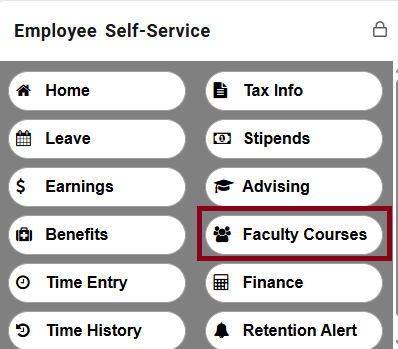
To report official grades, log in to mySCC and click on the “Faculty course” button in the “Employee Self-Service” card.


Course Rosters #


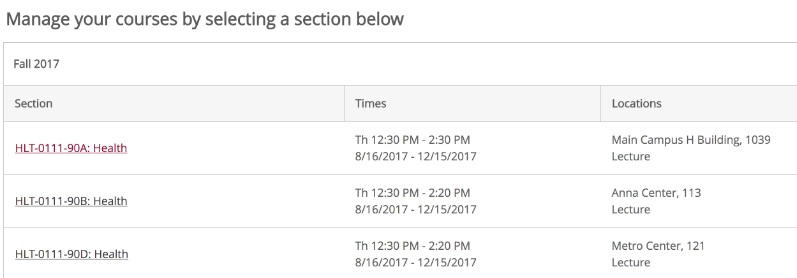
You’ll see a list of your active classes. Click on a class to view a course roster.


Grades Submission #


From a course, click on the “Grading” tab to go to the grade screen.



On the Grading page, from the start of the semester, you’ll see a tab for “Initial Progress Grade” and one for “Midterm Grade.” Initial Progress is a status check that must be turned in on the tenth day of class. Midterm is for the actual midterm grade at mid-semester.



Initial Progress/Tenth Day #


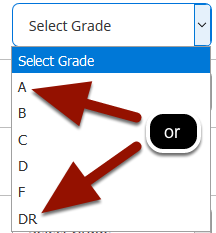
For Initial Progress/Tenth Day status check,  use the grade dropdown menu in the Initial Progress tab to select either an “A” to indicate the student is currently attending the class, or select “DR” to drop a student from the class. After this Initial Progress check, students cannot be dropped from the course by the instructor. Only a student can initiate a post-tenth day drop.

Click on the Select Grade dropdown menu next to each student’s name to select a “grade” for each student for the Initial Progress check.


Midterm Grades #


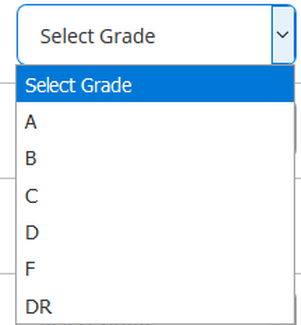
For the  Midterm grade, a grade dropdown menu is available in the Grade column to the right of each student’s name on the Midterm tab. Submit the appropriate midterm grade for a student by picking the appropriate grade from the dropdown.

You cannot select “DR” to drop a student at this time. Only letter grades can be selected at midterm and for final grades.


Final Grades #


Final Grades are submitted from the Final Grade tab on the Grading page. The Final Grade tab will not appear until the end of the semester. Select students’ final grades from the Final Grade dropdown menu next the the student’s name.



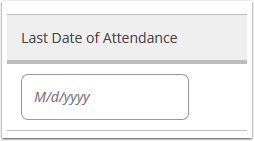
For students receiving a failing grade as a final grade, you must enter a Last Date of Attendance in M/d/yyyy format, for example, “1/15/2026”.


Still stuck? How can we help?

How can we help?

Updated on December 2, 2025
Recording Daily Attendance
Table of Contents
  • MySCC - Faculty Self Service
  • Course Rosters
  • Grades Submission
  • Initial Progress/Tenth Day
  • Midterm Grades
  • Final Grades
A-Z Index
Academic Calendar
Accessibility
Complaints
Contact SCC
Employee Directory
Financial Aid
Institutional Effectiveness
Jobs Opportunities
Knowledge Base
Moodle
mySCC
News & Events
Saints Alert
Student Handbook
Transportation


Follow us

  • tiktok
  • instagram
  • twitter
  • youtube
  • facebook
  • threads
  • spotify
  • linkedin


Mission, Values & Vision | Accreditation | Title IX | Report Fraud | Technical Support
© 2025 SHAWNEE COMMUNITY COLLEGE / 8364 SHAWNEE COLLEGE ROAD, ULLIN, IL 62992, 1-800-481-2242
This site is protected by reCAPTCHA and the Google Privacy Policy and Terms of Service apply.