First, open Google Chrome and log in to your SCC Gmail. On the right side of your address bar, click on the small icon that looks like two overlapping squares.

Select “Allow” on the small drop-down window that opens.
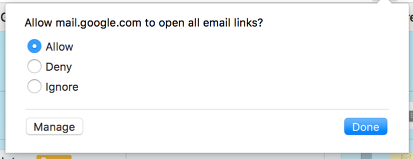
Once set, if you open your Self-Service Course Roster, clicking on “Email All” or on individual student email links will open your Gmail in a new tab with the student email address(es) pre-populated.
If you want your computer to do this regardless what browser you are in (e.g. Firefox, Safari, etc), you also need to set Chrome as the default app to handle mail links. This has to be done in Windows or Mac OS system settings, not in browser settings.
- Setting Chrome as your default mail app and setting your SCC email as your default handler in Chrome must be done once on each computer that you use regularly.
- You cannot do this on public lab computers or any computer where you don’t have access to change system settings.
- You can check to see if your copy of Chrome already has Gmail set as the mail “handler” in Chrome settings. Just go to: Chrome Settings–> Advanced–> Handlers